
Canada’s favourite streaming stick
IPTV for Firestick Canada: Set Up in 5 Minutes
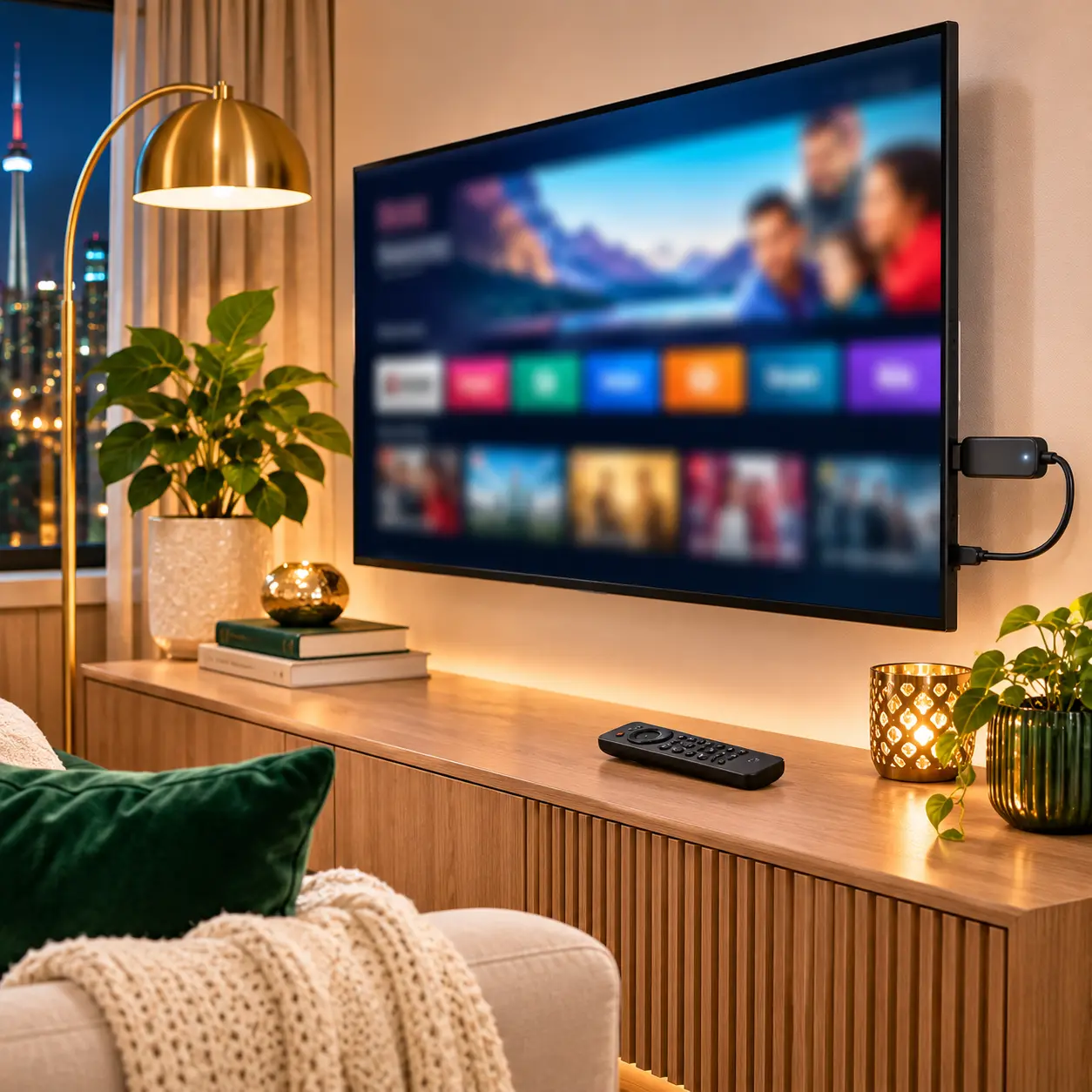
The Amazon Firestick is the easiest way to turn any TV into a full live TV box. This guide to IPTV for Firestick in Canada shows you which stick to buy, how to install the best IPTV app, and how to keep your streams smooth on game night.
- Works on every Fire TV model
- No technical skills needed
- Help on WhatsApp 24/7
time
Why Firestick Is the Top Choice for IPTV in Canada
Low Cost
A Fire TV Stick costs far less than a cable box rental, and you buy it once.
Works on Any TV
Plug it into any HDMI port. Even an older TV becomes a smart TV.
Runs the Best Apps
Firestick supports the most popular IPTV players, including IBO Pro Player and IPTV Smarters Pro.
Easy to Carry
Take it to the cottage, a hotel or a friend’s place and keep watching.
Simple Remote
Voice search and a small remote make it easy for the whole family.
Sold Everywhere
Find it at Amazon.ca, Best Buy, Walmart and Costco across Canada.
Which Firestick Should You Buy for IPTV?
Every current Fire TV model works with our service. The right one depends on your TV and how much you watch.
-
Fire TV Stick (HD)
- Best for
- Bedroom or kitchen TVs
- Max quality
- 1080p HD
Fine for HD channels on smaller screens.
-
Fire TV Stick 4K
- Best for
- Most living rooms
- Max quality
- 4K
The best value for most homes.
-
Our top pick
Fire TV Stick 4K Max
- Best for
- Sports fans, big TVs
- Max quality
- 4K
Faster processor and Wi-Fi, so apps and channels load quicker.
-
Fire TV Cube
- Best for
- Heavy use, wired setups
- Max quality
- 4K
Built-in Ethernet port for the most stable streams.
Amazon updates its models from time to time. If you already own an older Firestick, it will still work. Just make sure it has the latest software update.
How to Install IPTV for Firestick in Canada, Step by Step
Set aside 5 minutes and have your login details from WhatsApp ready.
-
Step 1
Turn on Developer Options
Go to Settings, then My Fire TV, then About. Highlight your device name and press the select button 7 times. A message says “You are now a developer”. Press back once and you will see Developer Options in the menu.
Settings › My Fire TV › About
- Fire TV Stick 4K MaxClick 7 times
- Storage
- Network
- Check for Updates
You are now a developer
-
Step 2
Install the Downloader app
Go to the home screen and open Find, then Search. Type “Downloader” and select the orange Downloader app. Press Get or Download and wait for it to install.
Find › Search
Downloader
Downloader -
Step 3
Allow Downloader to install apps
Open Settings, then My Fire TV, then Developer Options, then Install Unknown Apps. Find Downloader in the list and switch it On.
My Fire TV › Developer Options › Install Unknown Apps
- DownloaderON
- Silk BrowserOFF
- FilesOFF
-
Step 4
Download your IPTV player
Open Downloader. In the address box, type the app download link we send you on WhatsApp and press Go. When the download finishes, press Install, then Done. Choose Delete when Downloader asks, to free up space.
Downloader › Home
Enter a URL or search term
your app link from WhatsApp
Go
-
Step 5
Log in
Open the IPTV player from Your Apps and Channels. Choose Login with Xtream Codes API and enter any name you like, then your username, password and server URL. Press Add User.
IPTV player › Login with Xtream Codes API
Any name
Username
••••••••
http://server-url
Add User
-
Step 6
Start watching
Wait a few seconds while channels, movies and the TV guide load. Pick a channel and enjoy.
IPTV player › Home
Live TVMoviesSeries
Screens are simplified drawings. Menu names match the Fire TV menus, but layouts can look slightly different on your model.
Tip: Long-press the Home button, choose Apps, then move your IPTV player to the front row so it is always one click away.
Best IPTV Apps for Firestick
-
Our top pick
IBO
IBO Pro Player
Best all-round choiceA clean, fast player with a simple TV guide. It shows a MAC address and device key on screen: send us a photo on WhatsApp and we add your playlist for you. The app developer may charge a small activation fee.
-
2nd
SP
IPTV Smarters Pro
BeginnersSimple menus for live TV, movies and series in separate sections. You log in yourself with Xtream Codes details.
-
3rd
XC
XCIPTV
A lightweight optionFast and simple, good for older Firesticks with less memory.
-
4th
TM
TiviMate
Cable-style TV guideA detailed TV guide for heavy live TV viewers. Extras like favourites, catch-up and recording need its premium upgrade.
Not sure which to pick? Start with IBO Pro Player. If you prefer to type your own login, IPTV Smarters Pro is the easiest.These apps are made by other developers. We do not own them, and their features or prices can change.
6 Ways to Make Your Firestick Faster for IPTV
Use Ethernet
Add an Amazon Ethernet adapter, or use a Fire TV Cube, for the most stable connection.
Switch to 5 GHz Wi-Fi
If you must use Wi-Fi, connect to your router’s 5 GHz band and keep the router close to the TV.
Clear the app cache
Pick your IPTV player and choose Clear Cache.
Settings › Applications › Manage Installed ApplicationsRemove apps you don’t use
Uninstalling unused apps frees memory so your player runs faster.
Turn off data collection
Switch off Device Usage Data and Collect App Usage Data.
Settings › Preferences › Privacy SettingsRestart once a week
A fresh start clears background clutter.
Settings › My Fire TV › Restart
Still buffering? Run a speed test on the Firestick itself. You need 15 Mbps for HD and 25 Mbps for 4K.
Common Firestick IPTV Problems and Quick Fixes
I can’t find Developer Options
Go to Settings, then My Fire TV, then About, and press your device name 7 times.
Downloader says the app can’t install
Check that Downloader is switched On under Install Unknown Apps, then try again.
“Storage full” message
Delete the downloaded install file in Downloader and remove apps you no longer use.
Channels freeze on game night
Use Ethernet or 5 GHz Wi-Fi and restart the Firestick before the game.
Remote stopped working
Take out the batteries for 30 seconds, then hold Home for 10 seconds to pair again.
App crashes or closes
Clear the app cache. If it keeps happening, uninstall and reinstall the player.
Still stuck? Send us a photo of the screen on WhatsApp and we will walk you through it, 24/7.
IPTV for Firestick Canada FAQs
Is IPTV for Firestick in Canada easy to set up?
Yes. Most people finish in about 5 minutes by following the steps above, with no technical skills needed.
Does turning on Developer Options harm my Firestick?
No. It only lets you install apps from outside the Amazon Appstore. You can switch it off again at any time.
Which app should I use on Firestick?
Our top pick is IBO Pro Player. If you prefer to type your own login, IPTV Smarters Pro is the easiest to start with.
Which Firestick is best for 4K IPTV?
The Fire TV Stick 4K Max. Its faster Wi-Fi and processor handle 4K sports and big channel lists smoothly.
Can I use one subscription on two Firesticks?
You can install the app on both, but how many can stream at the same time depends on your plan. Ask us on WhatsApp.
Can I try it on my Firestick for free?
Yes. Ask for our free 24-hour trial and test it on your own Firestick first. Install the app before you ask, since the 24 hours start when we send your login.
Your Firestick Is Ready. Are You?
Get IPTV for Firestick in Canada running tonight. Start with a free 24-hour trial, and if you get stuck at any step, our team will set it up with you on WhatsApp, 24/7.